
Why CHKDSK Destroys Data
on Failing Drives
CHKDSK is a file system consistency tool. It was built for healthy drives after power loss or unclean shutdowns. When run on a drive with hardware failure, it forces a full surface scan on degraded heads, overwrites file system metadata that recovery tools need, and triggers TRIM erasure on SSDs. This page documents 14 websites that recommend CHKDSK for failing drives, quotes their instructions verbatim, and explains the engineering behind each destruction mechanism.

Running CHKDSK on a failing drive converts recoverable data into permanent loss.
CHKDSK assumes the physical storage medium is healthy. On a failing HDD, the /r flag forces degraded read/write heads across every sector in the partition. On the file system level, it overwrites $MFT records it cannot read, severing file names and directory paths. On SSDs, freeing clusters sends TRIM commands that erase NAND pages. The correct first step is read-only sector-level imaging with PC-3000 Data Extractor or DeepSpar Disk Imager.
Companies Documented on This Page:
Browse by company:
CHKDSK on Drives with Fatal Hardware Errors
Should You Run CHKDSK on a Drive with a Fatal Device Hardware Error?
The Misconception
SalvageData's guide for 'Fatal Device Hardware Error' acknowledges that the error 'is often due to physical damage or corruption' and then instructs users to run CHKDSK with /f /r /x flags. Their warning to 'make a backup of your files before proceeding' is paradoxical: if the drive has a fatal hardware error, it cannot perform normal file-level backups.
Source: SalvageData
“The CHKDSK utility helps you fix file system errors and bad sectors on your hard drive... Type chkdsk *C: /f /r/x in the command prompt window and hit Enter.”
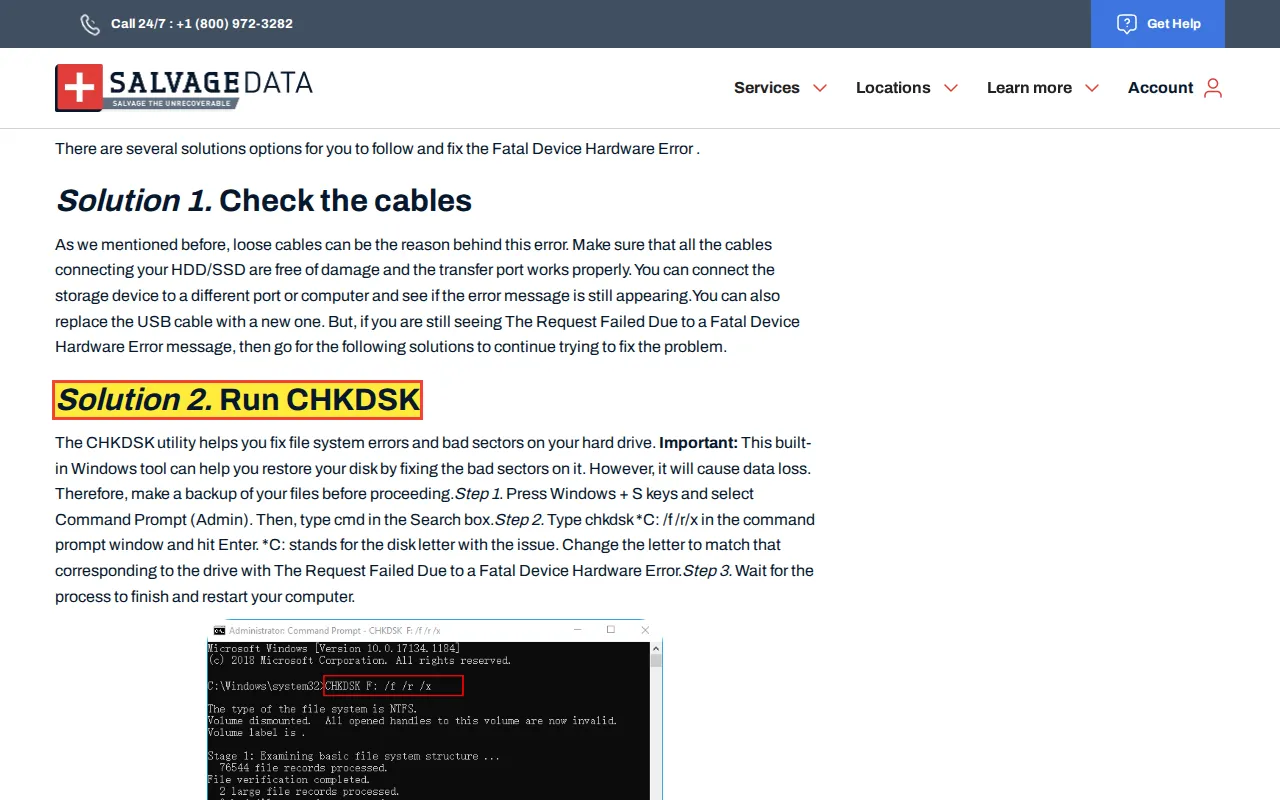 Click to enlarge screenshot
Original: https://www.salvagedata.com/blog/fatal-device-hardware-error-solution/
Captured 2026-03-23
The Reality
A 'Fatal Device Hardware Error' means the drive firmware cannot complete read or write requests. On an HDD, this typically indicates head degradation, media damage, or firmware module corruption. CHKDSK /r forces a sequential read of every cluster within the partition, maximizing stress on a mechanical system that is already failing. The /x flag forces volume dismount, terminating all active file handles and locking the drive for exclusive access during the scan.
Why This Matters
The drive's degraded heads are forced across every track. Consumer drives (non-TLER models) retry each bad sector 10 to 20 times. This repeated hammering generates localized heat and accelerates head failure toward a head crash, where the heads contact the spinning platters and score the magnetic coating.
Correct Recovery Procedure
Power off the drive. Do not run CHKDSK, format, or any file system repair tool. Image the drive with PC-3000 Data Extractor or DeepSpar Disk Imager using configurable per-sector read timeouts. These tools skip degraded zones and return to them later with progressively shorter timeouts.
Source: Microsoft CHKDSK documentation (learn.microsoft.com)
SalvageData publishes multiple articles with destructive CHKDSK advice. Read the full SalvageData technical analysis covering their other findings.
CHKDSK on Drives Reporting SMART Failure
Should You Run CHKDSK When SMART Reports Imminent Failure?
The Misconception
AOMEI publishes three articles recommending CHKDSK for drives with active SMART warnings. Their 'Hard Disk Detects Imminent Failure' guide instructs 'Type chkdsk C: /f /r and hit Enter' to 'locate bad sectors to make your drive stable.' Their 'Windows Detected a Hard Disk Problem' guide repeats the same advice without any data loss warning.
Source: AOMEI
“Fix 1: Check DiskErrors using CHKDSK... locates bad sectors to make your drive stable... Type chkdsk C: /f /r and hit Enter.”
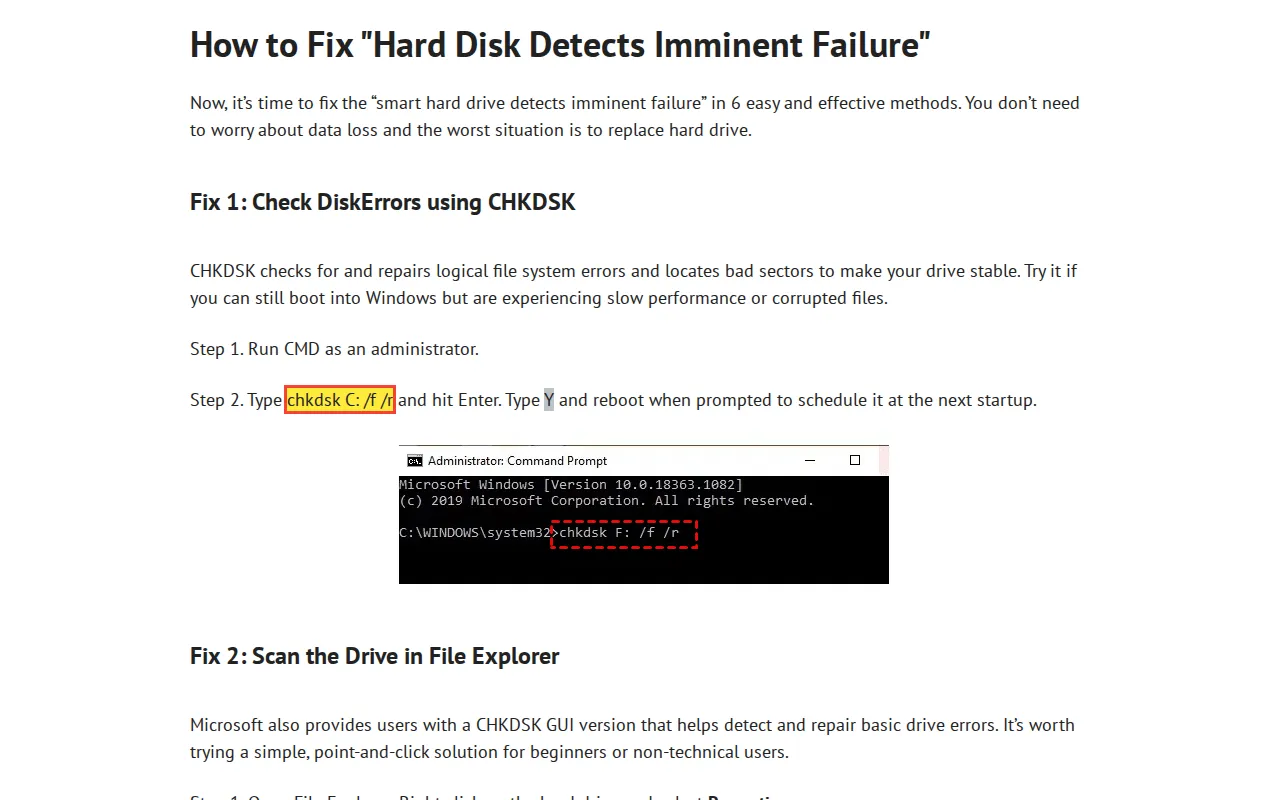 Click to enlarge screenshot
Original: https://www.aomeitech.com/clone-tips/hard-disk-detects-imminent-failure-0044.html
Captured 2026-03-23
Source: AOMEI
“In the Command Prompt window, type chkdsk C: /f/r and press Enter... /r will mark bad sectors (if there are) as unused and recover readable information.”
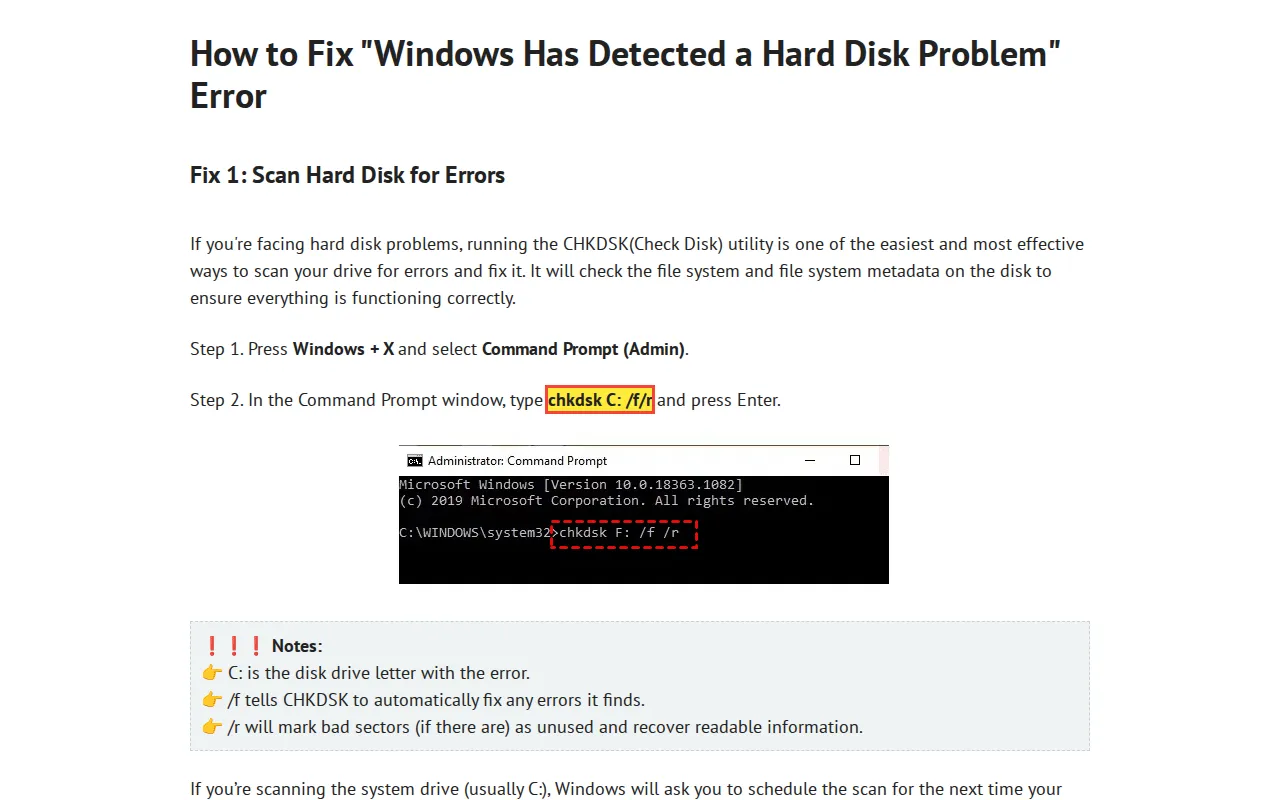 Click to enlarge screenshot
Original: https://www.aomeitech.com/clone-tips/windows-detected-a-hard-disk-problem-0044.html
Captured 2026-03-23
Source: AOMEI
“#1: Run Disk Check to Repair Errors... Type chkdsk C: /r command and press Enter.”
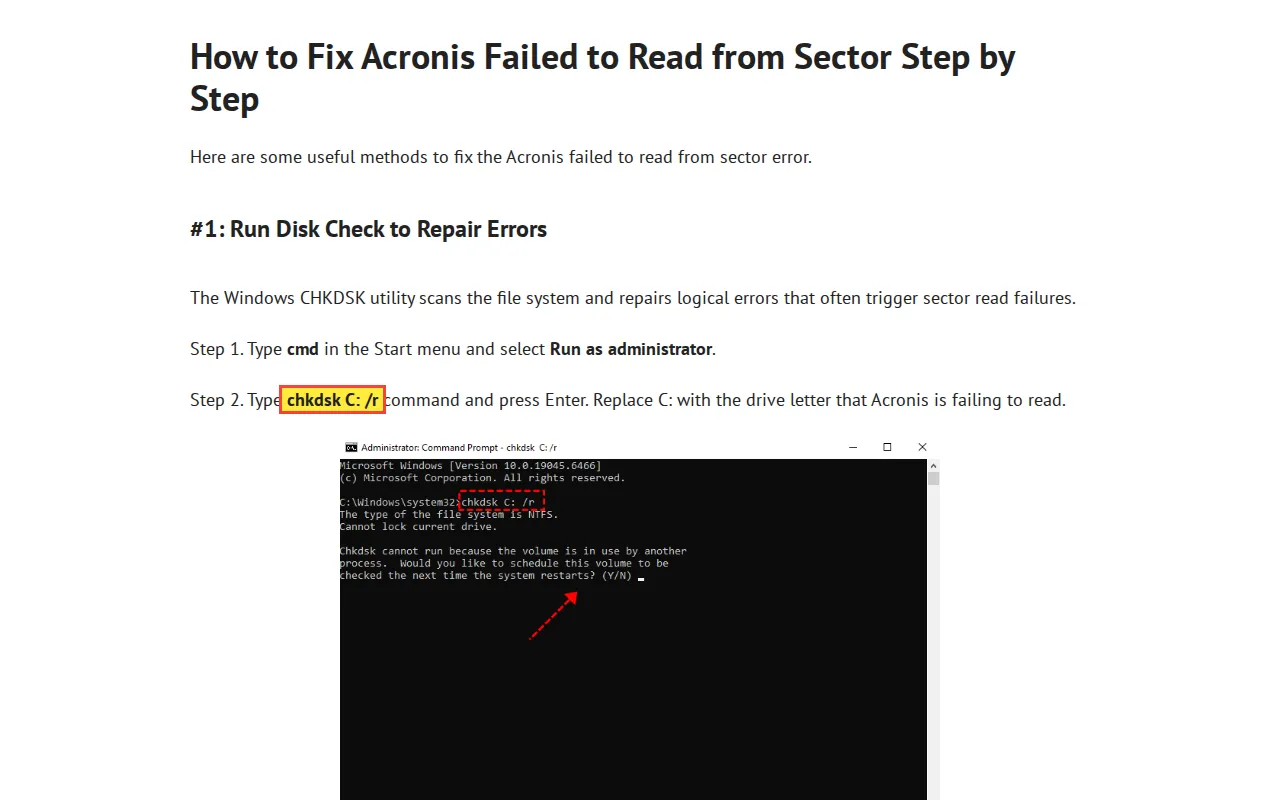 Click to enlarge screenshot
Original: https://www.aomeitech.com/clone-tips/acronis-failed-to-read-from-sector-0044.html
Captured 2026-03-23
The Reality
SMART thresholds trip only when a drive has sustained physical degradation: a spike in Reallocated Sector Count, Current Pending Sector Count, or Spin Retry Count. By definition, the drive is actively dying. Running a full surface scan (/r) on a drive that has already warned the host firmware of imminent failure accelerates that failure.
Why This Matters
The /r flag forces the actuator arm across every track on every platter surface. On a drive with failing heads, this sustained load generates heat that pushes the heads closer to the platter surface. A head crash during the scan destroys data on every track the heads contact.
Correct Recovery Procedure
When SMART reports imminent failure: power off the drive. Do not run any diagnostic or repair utility. Image it with hardware tools that use configurable timeouts and multi-pass strategies.
Source: ATA/ATAPI SMART specification (T13); AOMEI's own articles
CHKDSK on Drives Failing Diagnostic Tests
Should You Run CHKDSK After a Failed Drive Self-Test or CRC Error?
The Misconception
Secure Data Recovery publishes two articles recommending CHKDSK for hardware-level diagnostic failures. Their 'Short DST Failed' guide instructs 'chkdsk X: /f /r' for a drive that failed its internal self-test. Their CRC error guide recommends 'chkdsk X: /f /r /x' for errors caused by 'hardware failure, or physical damage (such as scratched platters or bad sectors).'
Source: Secure Data Recovery
“In the Command Prompt window, type the following command and press Enter. chkdsk X: /f /r. Replace X with your drive letter.”
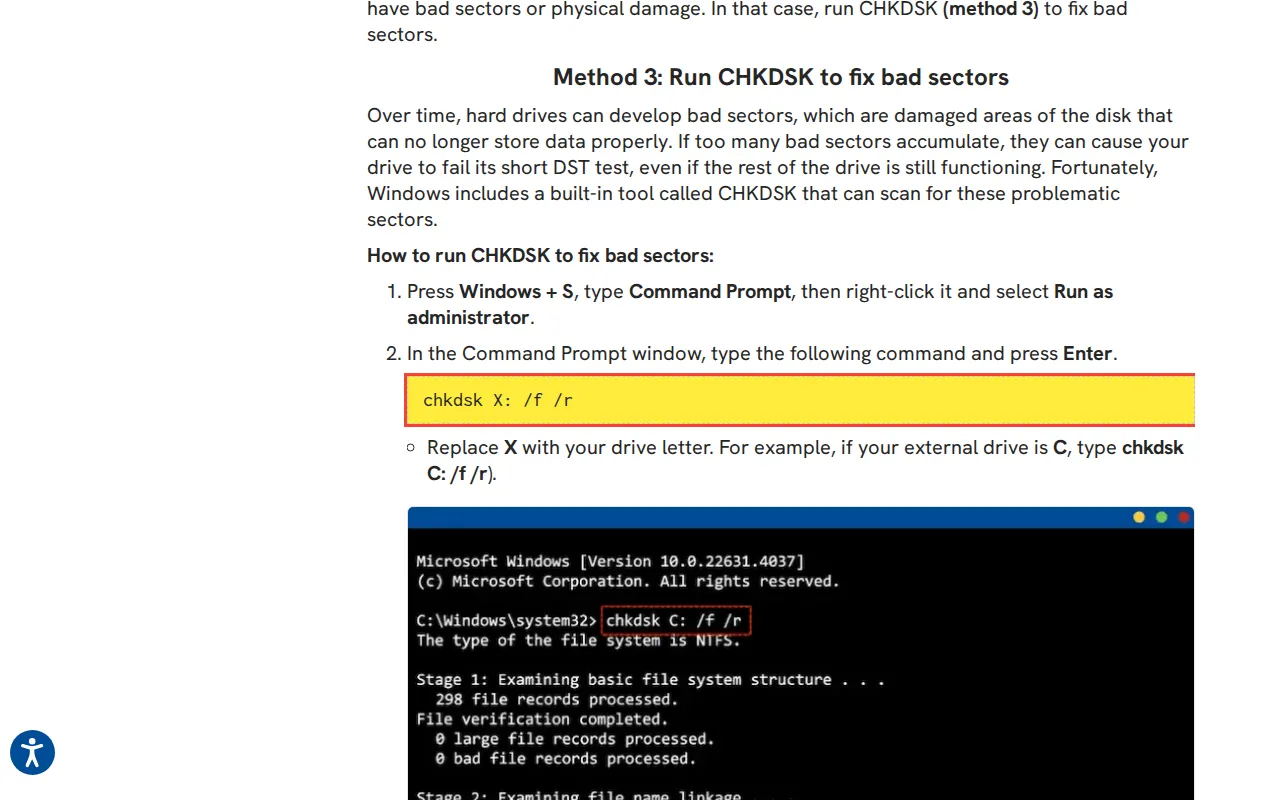 Click to enlarge screenshot
Original: https://www.securedatarecovery.com/blog/short-dst-failed
Captured 2026-03-23
Source: Secure Data Recovery
“Use 'chkdsk X: /f /r /x' as your command... This command scans your drive for errors and tries to fix them.”
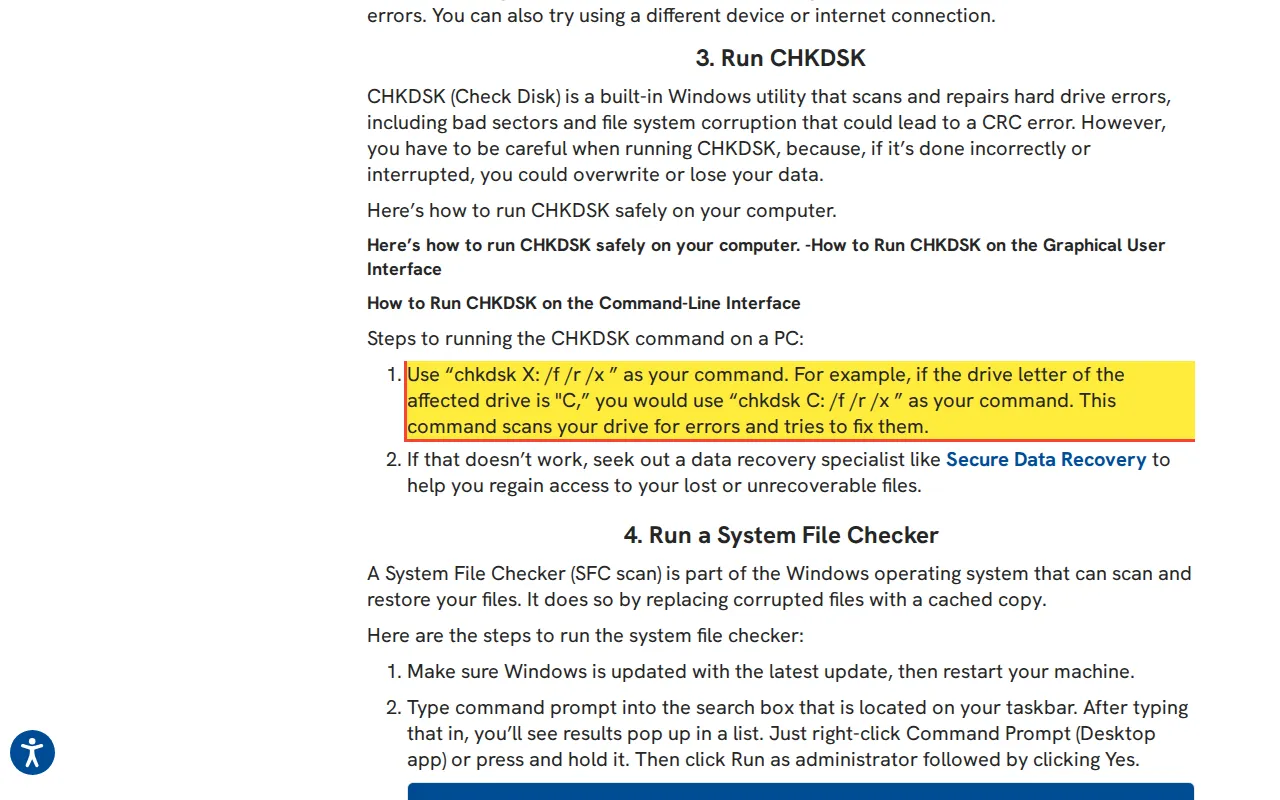 Click to enlarge screenshot
Original: https://www.securedatarecovery.com/blog/data-error-cyclic-redundancy-check
Captured 2026-03-23
The Reality
A failed Short Drive Self-Test (DST) is a firmware-level declaration that the drive's read/write heads cannot complete a basic servo seek test or that the Growing Defect List has overflowed. A CRC (Cyclic Redundancy Check) error means the drive's internal ECC cannot reconstruct data from a sector. Both are hardware failures, not file system problems.
Why This Matters
CHKDSK /r forces the compromised heads to interrogate the entire surface area. When it encounters sectors the firmware cannot read, it drops directory links and orphans files to .chk fragments. On SSDs, freed clusters trigger TRIM erasure.
Correct Recovery Procedure
Source: ATA Short Drive Self-Test specification (T13); CRC error correction documentation
CHKDSK /b on Drives with Exhausted Spare Sectors
What Happens When You Run CHKDSK /b on a Drive with No Spare Sectors?
The Misconception
Stellar recommends 'CHKDSK X: /f /r /b' for the error 'disk does not have enough space to replace bad clusters.' That error means the drive has entirely exhausted its spare sector pool. MiniTool recommends 'chkdsk D: /f /r' for files showing as 0 bytes, a symptom of $MFT corruption or physical read channel failure.
Source: Stellar
“To get rid of the 'disk does not have enough space to replace bad clusters' error message, you can use the chkdsk utility again and repair the bad sectors.... Type CHKDSK X: /f /r /b and press Enter.”
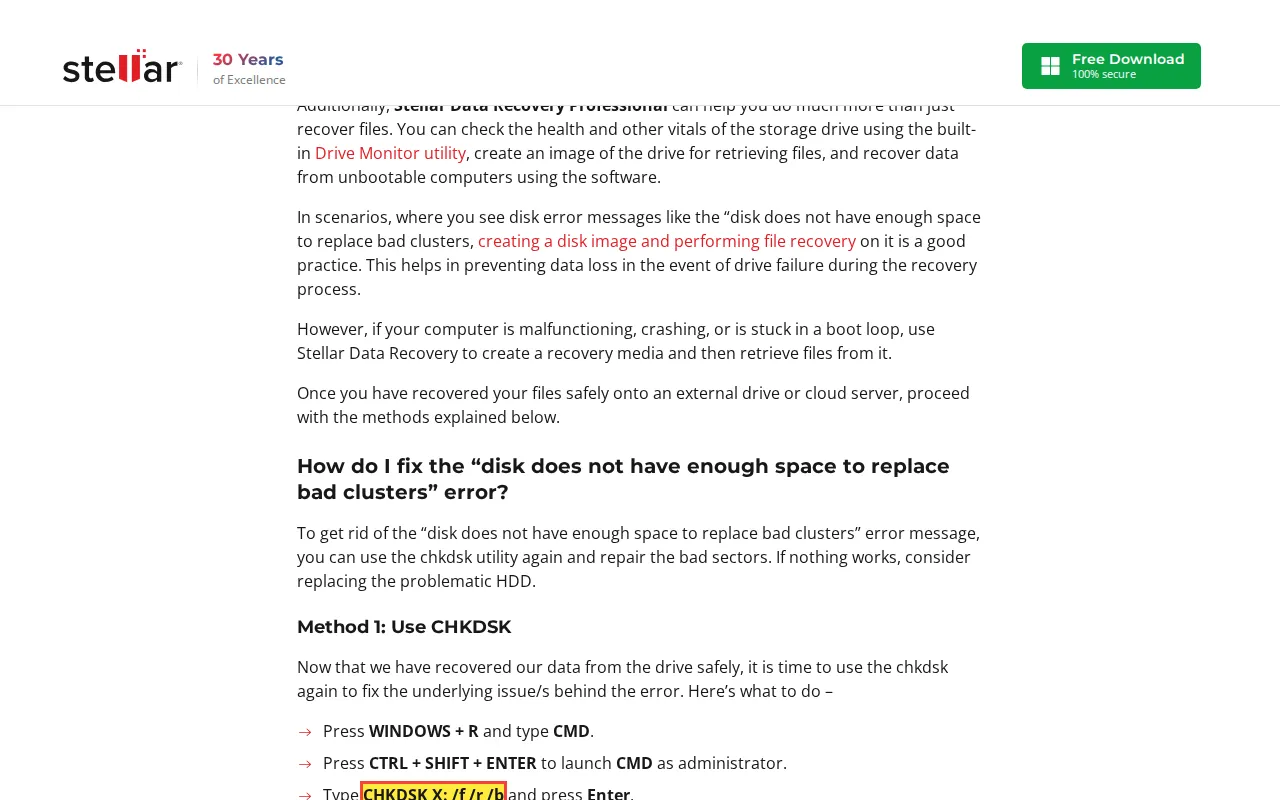 Click to enlarge screenshot
Original: https://www.stellarinfo.com/blog/disk-does-not-have-enough-space-to-replace-bad-clusters/
Captured 2026-03-23
Source: MiniTool
“To check bad sectors, you can use the CHKDSK tool in Command Prompt... type the following command and hit Enter. chkdsk D: /f /r”
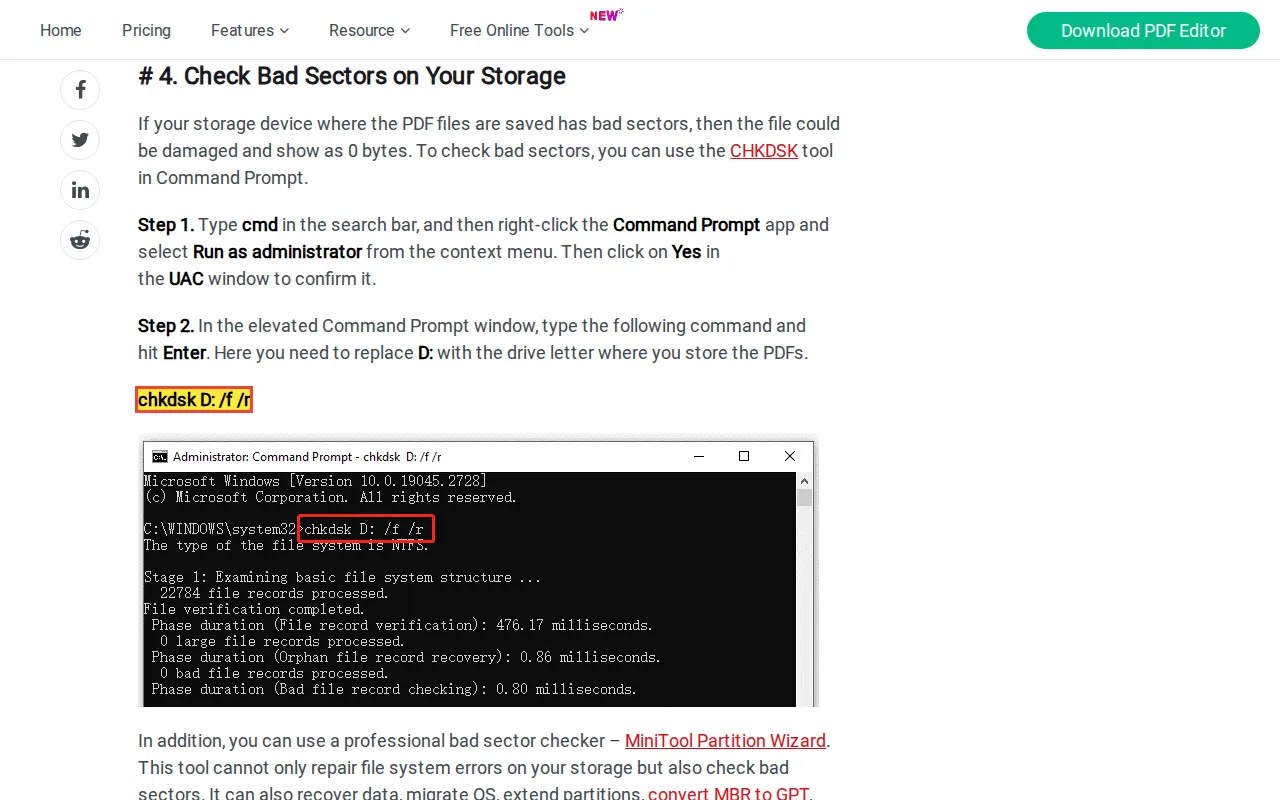 Click to enlarge screenshot
Original: https://pdf.minitool.com/news/open-0-kb-pdf-files.html
Captured 2026-03-23
The Reality
The /b flag clears the NTFS-level list of known bad clusters and forces CHKDSK to re-evaluate them. This sends the failing actuator assembly back over the most damaged areas of the platter that the file system had previously abandoned. On a drive with no spare sectors, the physical damage is already so widespread that the firmware has no reserve capacity. A 0-byte file is typically caused by a read failure on the $DATA attribute of the MFT record, not logical corruption.
Why This Matters
The /b flag on a drive with exhausted spares forces the heads over the worst-damaged zones. A head crash at this stage destroys data across multiple tracks. The 0-byte file that could have been recovered by carving raw hex data from a disk image is permanently erased from the file system by CHKDSK.
Correct Recovery Procedure
Image the drive first, then run file system repair tools on the image. PC-3000 Data Extractor allows engineers to build a head map, imaging from stable heads first while skipping degraded heads and power-cycling when errors are detected.
Source: Microsoft CHKDSK /b documentation; NTFS $MFT $DATA attribute specification
CHKDSK on SD Cards and Flash Media
Should You Run CHKDSK on an SD Card or Flash Media?
The Misconception
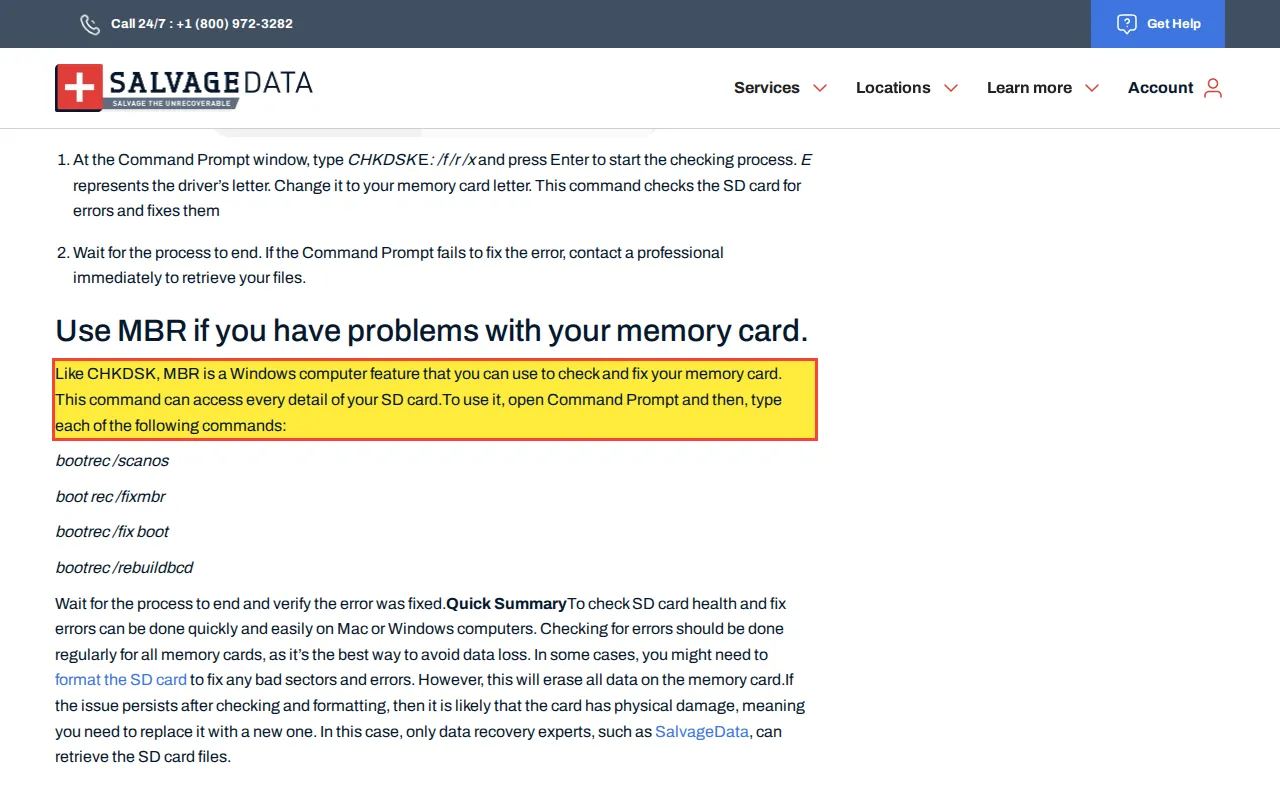
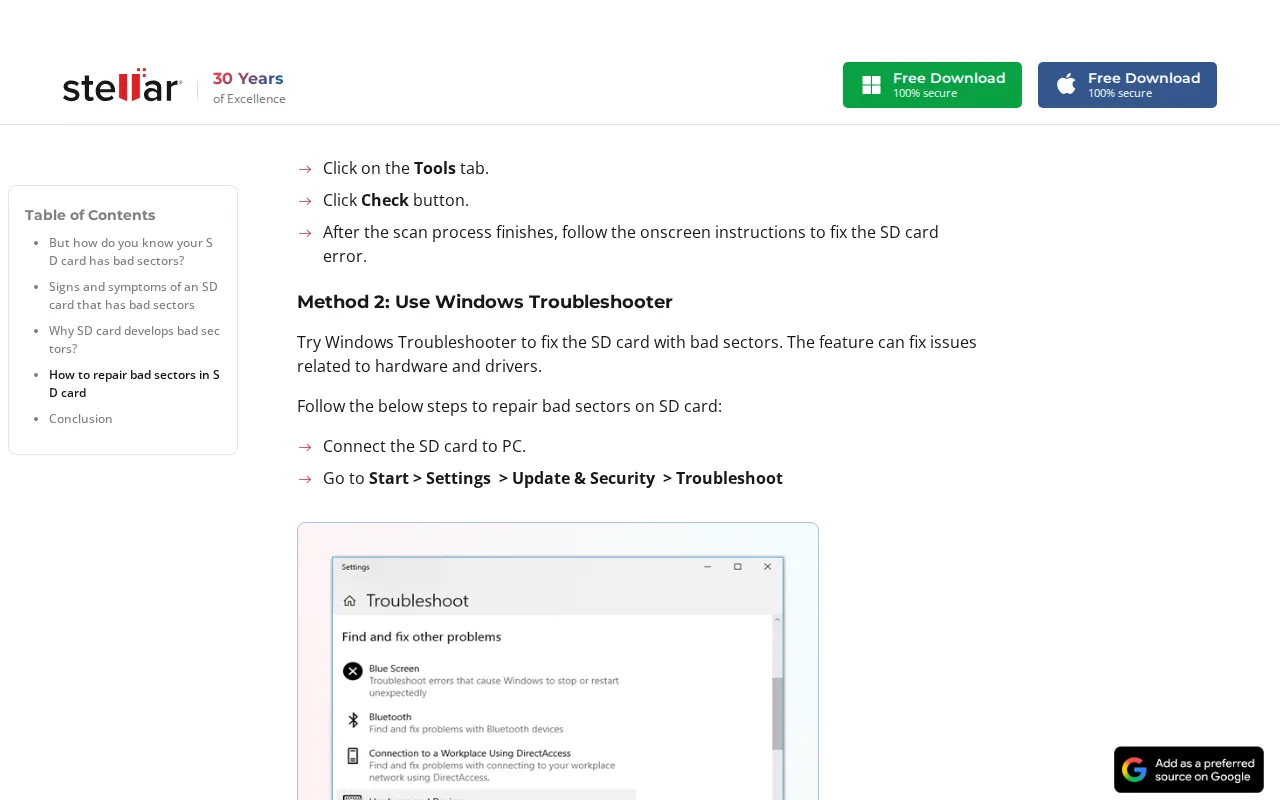
SalvageData recommends 'CHKDSK E: /f /r /x' to 'check the SD card for errors and fix them.' Stellar instructs users to type 'chkdsk G: /f' as a 'bad sector repair tool' for SD cards. Both recommendations treat flash media as if it were a mechanical hard drive.
Source: SalvageData
“Typing the command CHKDSK E: /f /r /x... This command checks the SD card for errors and fixes them”
 Click to enlarge screenshot
Original: https://www.salvagedata.com/blog/check-sd-card-for-errors/
Captured 2026-03-23
Source: Stellar
“Type 'chkdsk followed by the drive letter of the SD card, a colon and /f. (For example, chkdsk G: /f...)”
 Click to enlarge screenshot
Original: https://www.stellarinfo.com/blog/repair-sd-card-with-bad-sectors/
Captured 2026-03-23
The Reality
SD cards use NAND flash memory with an internal Flash Translation Layer (FTL) and wear-leveling microcontroller. 'Bad sectors' on an SD card indicate exhausted write-cycle endurance or FTL instability, not magnetic surface damage. CHKDSK /f on flash media triggers FAT/exFAT metadata mutations that are immediately written back to the failing cells. The /r flag compounds this by scanning every cluster. On flash media with active TRIM support, freed clusters are erased permanently.
Why This Matters
The barrage of metadata writes from CHKDSK frequently causes a compromised FTL to panic and lock the card into a permanent read-only state. If the FTL does not lock, CHKDSK's FAT table rewrites can corrupt the file allocation tables beyond recovery. Data that was physically intact on the NAND cells is rendered inaccessible by the FTL corruption.
Correct Recovery Procedure
Connect the SD card to a hardware write-blocker via a card reader. Image the card at the sector level. If the controller is functional, PC-3000 Flash or R-Studio can reconstruct the FAT/exFAT file system from the image. If the controller is dead, the NAND chip can be desoldered and read directly in a programmer.
Source: JEDEC flash endurance specification; FAT32/exFAT filesystem specification
CHKDSK on Drives with I/O Errors or RAW Partitions
Should You Run CHKDSK on a Drive with an I/O Error?
The Misconception
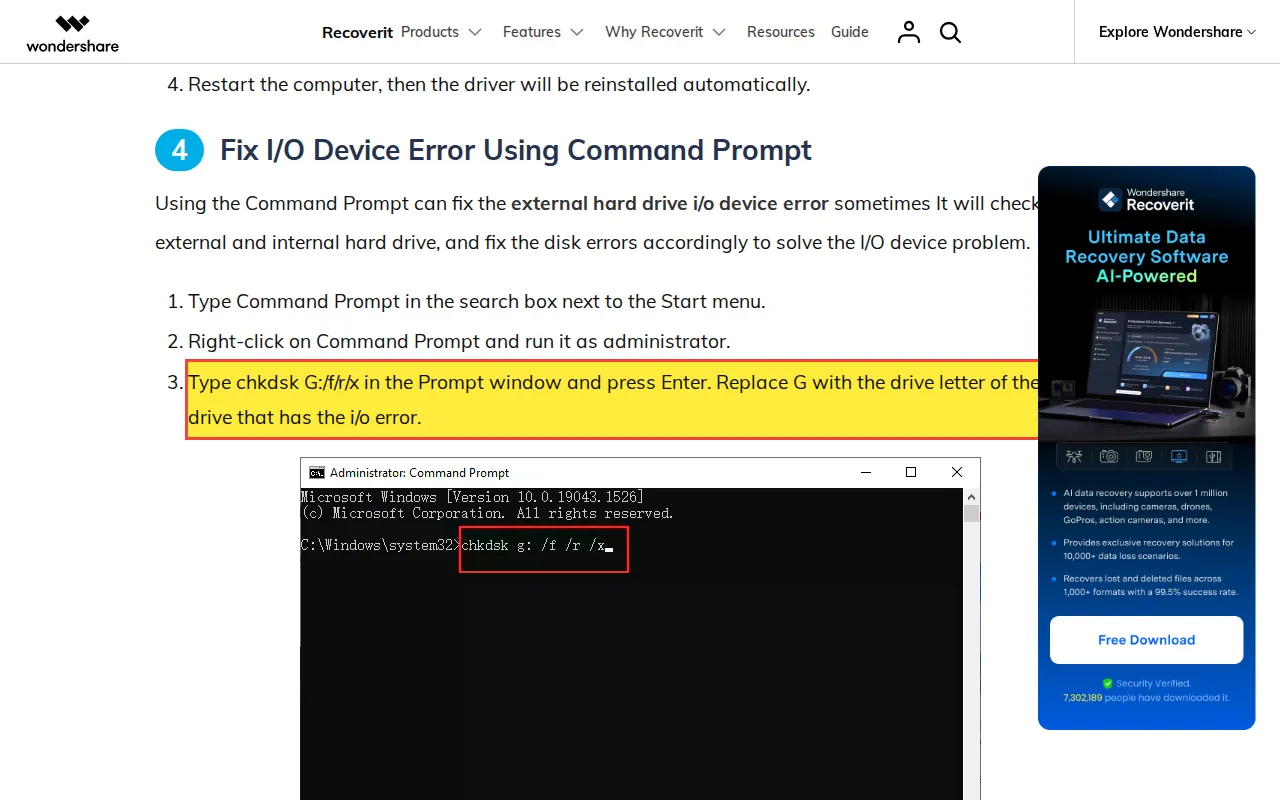
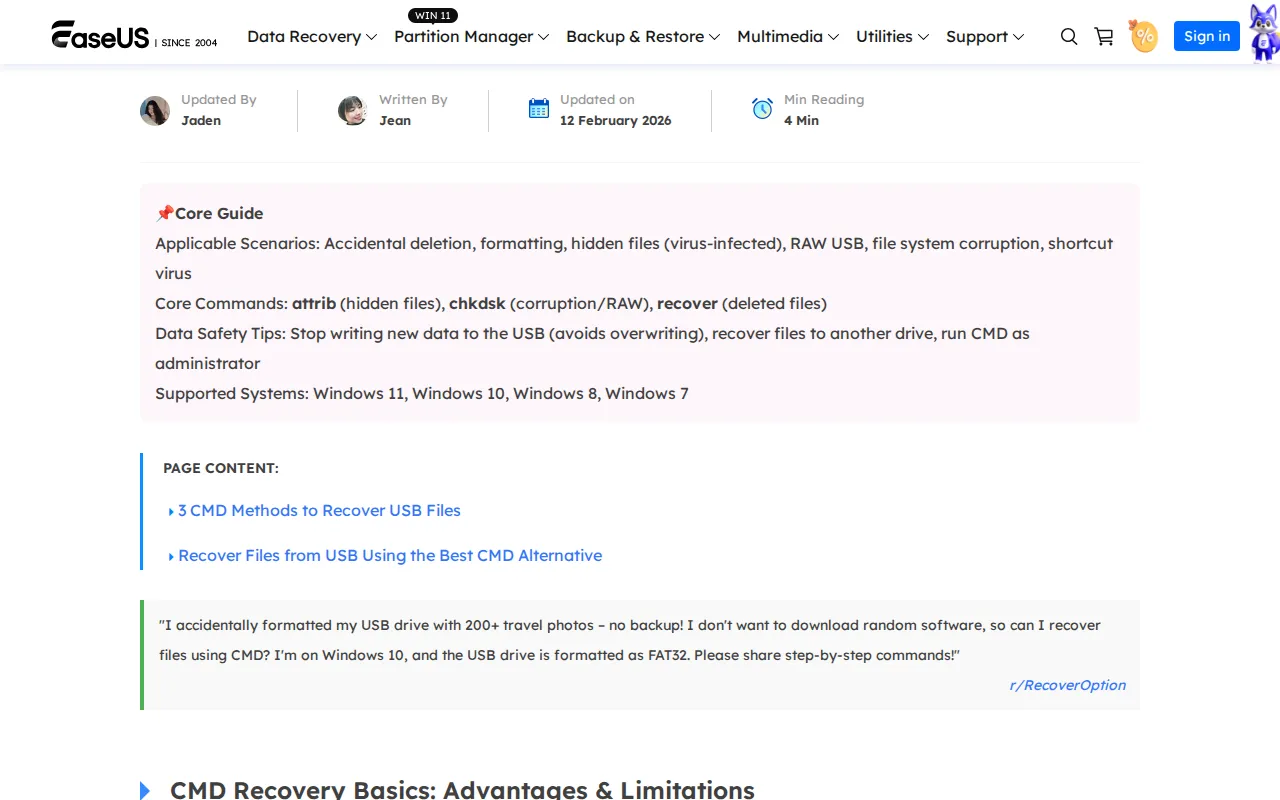
Wondershare recommends 'chkdsk G:/f/r/x' for external hard drives showing I/O device errors. EaseUS instructs users to type 'chkdsk d: /r/f' for drives appearing as RAW in Windows. Both fail to distinguish between a logical file system issue and a physical hardware failure.
Source: Wondershare
“Using the Command Prompt can fix the external hard drive i/o device error... Type chkdsk G:/f/r/x in the Prompt window and press Enter.”
 Click to enlarge screenshot
Original: https://recoverit.wondershare.com/harddrive-recovery/how-to-fix-external-hard-drive-io-error.html
Captured 2026-03-23
Source: EaseUS
“chkdsk drive letter: /r/f (e.g., chkdsk d: /r/f)”
 Click to enlarge screenshot
Original: https://www.easeus.com/data-recovery-solution/command-prompt-for-data-recovery.html
Captured 2026-03-23
The Reality
An I/O Device Error on an external drive frequently indicates internal head failure, firmware module corruption, or a degraded USB bridge controller. A RAW partition in Windows often means the OS cannot read the Master Boot Record or volume boot sector due to physical degradation. Running CHKDSK /r on a RAW partition commands the utility to rebuild a file system tree over a physically failing surface.
Why This Matters
On external drives, the /x flag forces dismount and the /r flag forces sustained scanning. An unstable USB bridge connection will likely drop mid-write, corrupting the $MFT and rendering the partition permanently unmountable.
Correct Recovery Procedure
Source: ATA I/O error specification; USB Mass Storage Class specification
EaseUS publishes additional destructive advice beyond CHKDSK. Read the full EaseUS technical analysis.
Tech Publications Recommending CHKDSK for Drive Failure
Do Major Tech Publications Recommend CHKDSK for Failing Drives?
The Misconception
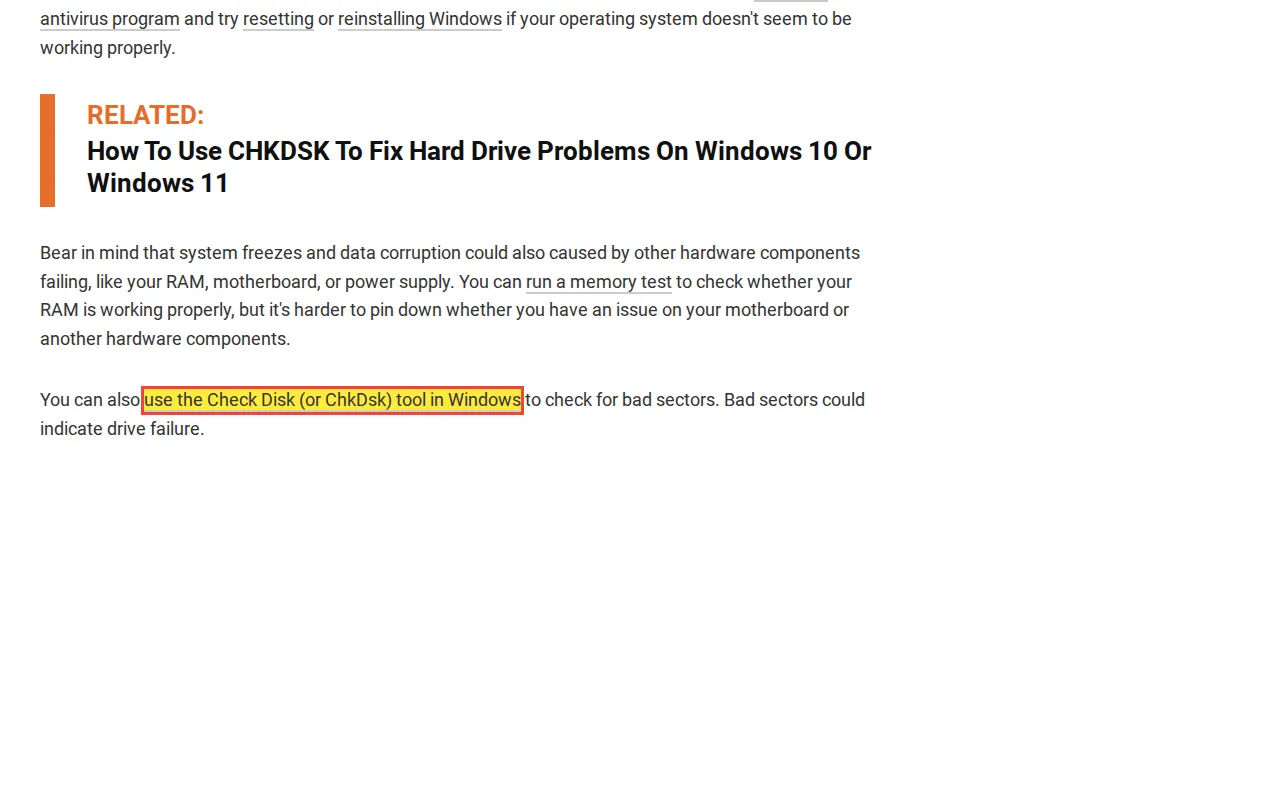
MakeUseOf lists CHKDSK as a 'hard drive health check app,' instructing users to 'type chkdsk C: /f /r to scan your main drive' with no data loss warning. How-To Geek recommends using 'the Check Disk (or ChkDsk) tool in Windows to check for bad sectors' on a drive that is 'making weird sounds.'
Source: How-To Geek
“You can also use the Check Disk (or ChkDsk) tool in Windows to check for bad sectors. Bad sectors could indicate drive failure.”
 Click to enlarge screenshot
Original: https://www.howtogeek.com/341268/what-to-do-when-your-hard-drive-fails/
Captured 2026-03-23
Source: How-To Geek
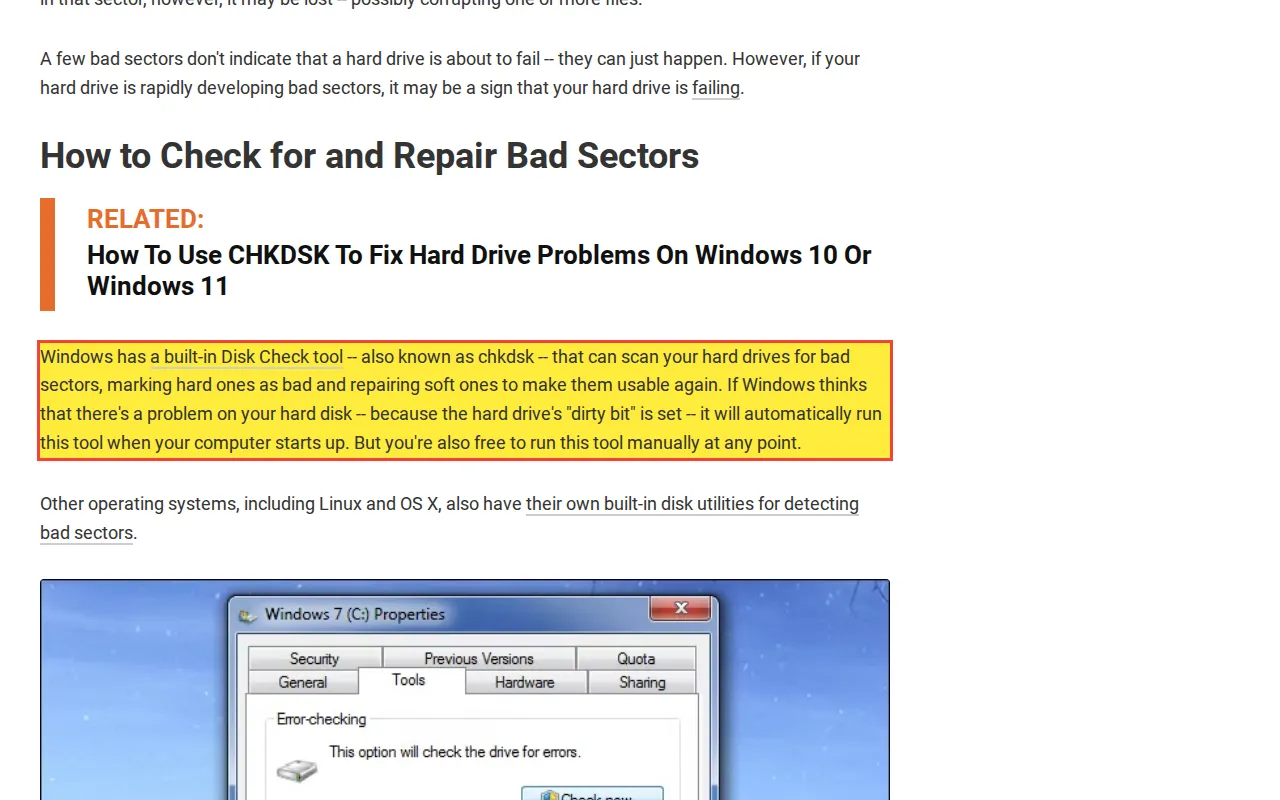
“Windows has a built-in Disk Check tool -- also known as chkdsk -- that can scan your hard drives for bad sectors, marking hard ones as bad and repairing soft ones to make them usable again.”
 Click to enlarge screenshot
Original: https://www.howtogeek.com/173463/bad-sectors-explained-why-hard-drives-get-bad-sectors-and-what-you-can-do-about-it/
Captured 2026-03-23
The Reality
CHKDSK does not perform passive health checks or non-destructive reads. It performs active, destructive file system writes. 'Weird sounds' (clicking, grinding, beeping) from a mechanical drive mean the fault is in hardware, and the sound does not identify which part. Commanding the actuator to sweep the platters during an active mechanical failure accelerates media scoring and head destruction.
Why This Matters
Readers who follow this advice convert recoverable mechanical failures into permanent platter damage. The CHKDSK scan generates metallic particulate debris throughout the drive chassis.
Correct Recovery Procedure
A drive making unusual sounds should be powered off immediately and diagnosed on hardware rather than scanned. Where that diagnosis finds damaged heads, the recovery needs a 0.02 micron ULPA-filtered clean bench, matched donor heads, and sector-level imaging with PC-3000.
Source: SMART diagnostic specification; HDD acoustic failure mode documentation
Does Microsoft Recommend CHKDSK for Disk Hardware Problems?
The Misconception
Microsoft's own support documentation for 'Windows could not start because of a computer disk hardware configuration problem' instructs users to 'Start the computer by using the Recovery Console, and then run the CHKDSK /r command.' Dell's support portal for hardware error codes links directly to CHKDSK instructions for 'correcting file errors or bad sectors on a hard disk.'
The Reality
Microsoft engineered CHKDSK for file system consistency after unclean shutdowns, not for hardware diagnostics. A 'disk hardware configuration problem' preventing boot indicates a physical fault. Pushing /r through the Recovery Console onto a failing boot drive initiates a full surface scan against the drive that contains the only copy of the operating system and user data.
Why This Matters
Users trust OEM documentation above all other sources. Following this advice runs the most destructive CHKDSK variant against the system boot partition of a drive that is already in hardware failure.
Correct Recovery Procedure
Boot from a Linux live USB (if the system can POST) and use ddrescue with careful parameter tuning to image the drive to a separate disk. If the system cannot POST, remove the drive and connect it to a hardware imaging tool.
Source: Microsoft Support article; Dell ePSA diagnostic code documentation
Borderline CHKDSK Advice with Partial Warnings
Is CleverFiles' CHKDSK Recommendation Adequately Warned?
The Misconception
CleverFiles (Disk Drill) correctly warns that 'Dealing with a physically damaged disk is extra risky' and lists mechanical noises as signs to contact a professional. But they then recommend CHKDSK for drives with 'error messages' or when 'you can't read or write data on the drive.' An inability to read data without noises is often the silent precursor to full mechanical failure.
The Reality
Drives can fail silently. Not all head degradation produces audible sounds. Pre-amplifier failure, read channel instability, and firmware corruption cause read errors without clicking or grinding. A user who passes CleverFiles' noise test but has a silently failing drive will run CHKDSK and push their drive from recoverable degradation into catastrophic failure.
Why This Matters
The noise-based warning creates a false safety gate. Users with silent failures proceed with CHKDSK, trusting the caveat, and destroy their data.
Correct Recovery Procedure
Any drive that produces read errors, shows corrupted files, or displays I/O error messages should be treated as potentially failing hardware. Power off first. Diagnose with SMART attribute analysis (smartctl or CrystalDiskInfo) before deciding on any action.
Source: SMART pre-failure attribute documentation; drive firmware retry behavior
Companies That Correctly Warn Against CHKDSK
Ontrack (KLDiscovery) publishes technically accurate guidance warning users against running CHKDSK on failing drives.
“The incorrect use of CHKDSK can do more harm than good and can permanently destroy data that may otherwise have been recoverable.”
Labs with engineering leadership tend to suppress SEO content that advocates destructive DIY triage. DriveSavers, PITS Global, and Gillware also avoid publishing CHKDSK command-line tutorials for hardware failure scenarios.
When Is CHKDSK Safe to Run?
CHKDSK is a legitimate tool when used for its intended purpose: repairing file system inconsistencies on a healthy drive after an unclean shutdown.
- The drive experienced a power loss or blue screen, and Windows flagged the volume as dirty
- SMART reports no reallocated sectors, no pending sectors, and no offline uncorrectable sectors
- The drive makes no unusual sounds (clicking, grinding, beeping, buzzing)
- You have a verified backup of the data before running any repair tool
If any of those conditions is not met, do not run CHKDSK. Check SMART attributes first using smartctl -a /dev/sdX on Linux or CrystalDiskInfo on Windows.
Technical Details: CHKDSK Destruction Mechanisms
The section above covers which companies publish this advice and why it is dangerous. This section explains the three destruction mechanisms in hardware engineering detail for IT professionals and storage engineers.
How CHKDSK Destroys Data on Failing Hard Drives
Mechanism 1: Full Surface Scan Under Maximum Mechanical Stress
The /r flag forces a sequential read of every cluster within the partition, maximizing the radial travel of the actuator arm across the platter surfaces that store that partition's data. Consumer-grade drives (non-TLER/non-ERC models from Seagate, Western Digital, and Toshiba) have aggressive firmware retry algorithms. When the read head encounters a physically damaged sector, the firmware retries 10 to 20 times, adjusting flying height via the FHC heater and altering read channel parameters.
These retries force degraded, unstable heads to hover repeatedly over the site of physical media damage. The friction generates particulate debris and localized thermal expansion. Unlike PC-3000 Data Extractor or DeepSpar Disk Imager, which use configurable per-sector timeouts and park heads between passes, CHKDSK has no timeout control. It relies on the drive firmware to report failure, which on consumer drives can take 30+ seconds per bad sector.
Mechanism 2: Master File Table Mutation and Directory Severing
CHKDSK walks the NTFS $MFT, cross-referencing every 1024-byte MFT record against the $Bitmap cluster allocation table. It validates $INDEX_ROOT and $INDEX_ALLOCATION attributes for every directory. When a failing drive responds erratically to read requests, CHKDSK treats unreadable MFT records as file system corruption.
It severs hierarchical directory links, orphans file entries, and truncates data into numbered .chk fragments in a hidden FOUND.000 directory. Original file names, full directory paths, creation timestamps, and security descriptors are overwritten. PC-3000 Data Extractor uses multi-pass strategies with configurable timeouts to reconstruct partially readable MFT records. CHKDSK overwrites them.
How CHKDSK Destroys Data on SSDs and Flash Media
Mechanism 3: TRIM Erasure
When CHKDSK severs directory links and marks freed clusters in the NTFS $Bitmap, Windows issues ATA Data Set Management commands (TRIM) for those LBAs. The SSD controller queues the TRIMmed LBAs for its background Garbage Collection routine. During the next idle cycle, the controller applies a high-voltage charge to the floating gate transistors of the underlying NAND pages, resetting them to an empty state (0xFF or 0x00).
Once a NAND page is physically erased via TRIM, no professional lab, no chip-off desoldering procedure, and no firmware-level access can recover the data. CHKDSK on an SSD with file system corruption converts a recoverable logical issue (where data still physically exists on the flash cells) into permanent erasure.
The /b flag is the most destructive variant on flash media. It clears the NTFS-level bad cluster list and re-evaluates previously abandoned clusters. On an SD card, the barrage of write requests from metadata repair frequently causes a compromised Flash Translation Layer (FTL) to lock the card into a permanent read-only state.
What Each CHKDSK Flag Does to a Failing Drive
| Flag | What It Does | Destruction Mechanism | Risk Level |
|---|---|---|---|
/f | Fixes file system errors by rewriting metadata | Mechanism 2: overwrites $MFT records | HIGH |
/r | Reads every cluster in the partition and marks bad sectors | Mechanism 1+2 (HDD) or 2+3 (SSD) | CRITICAL |
/x | Forces volume dismount before scan | Terminates all file handles, locks volume for exclusive access | Compounds /r |
/b | Re-evaluates previously abandoned bad clusters | Forces heads over worst-damaged zones | CRITICAL |
The Correct Procedure for a Failing Drive
Professional data recovery bypasses CHKDSK entirely. The following procedure preserves all recoverable data without modifying any on-disk metadata.
- Power off the drive. Do not run CHKDSK, fsck, Disk Utility First Aid, or any file system repair tool.
- Connect the drive to a hardware imaging tool via a write-blocker. The write-blocker prevents any write commands from reaching the drive.
- Create a sector-level image using PC-3000 Data Extractor, DeepSpar Disk Imager, or ddrescue with manual parameter tuning.
- Configure read timeouts: a short initial timeout, tightened further for severely degraded zones. Park heads between passes on drives with detected head instability.
- Image healthy zones first. Return to failing zones later with shorter timeouts and limited retry counts.
- Verify that no file system metadata is modified during imaging. The image is a bit-for-bit copy of the source.
- Run file system repair tools on the image (copy), never on the original hardware.
Named equipment in our lab: PC-3000 Portable III, PC-3000 Express, DeepSpar Disk Imager, 0.02 micron ULPA-filtered clean bench for head swaps, FLIR thermal camera for board-level diagnostics.
Frequently Asked Questions
Does CHKDSK fix a failing hard drive?
Should I run CHKDSK on an SSD?
What does CHKDSK /r do to a bad sector?
Can CHKDSK cause data loss?
What should I do instead of running CHKDSK?
Is CHKDSK safe on an external hard drive?
What does CHKDSK /b do?
Since 2008
Established
As Featured In
Related services
Related Services
HDD recovery from $100. Head swaps, firmware repair, platter-level imaging.
SATA and NVMe SSD recovery from $200. Controller failure, NAND-level recovery.
If we cannot recover your data, you pay nothing.
32 myths debunked with evidence from 10 companies.
Drive Already Damaged by CHKDSK?
Call (512) 212-9111 or ship your drive to our Austin lab. No diagnostic fee. No data, no recovery fee.