Skip to main contentSkip to navigation
Rossmann Repair Group

Hard Drive Data Recovery Walkthrough: From Locked Drive to Data Recovery

A comprehensive step - by - step guide to professional hard drive recovery, featuring real examples of Seagate F3 and Barracuda V15 drives. Learn how to unlock protected drives, access service areas, perform ROM patching, and begin forensic imaging using PC-3000 professional hardware.

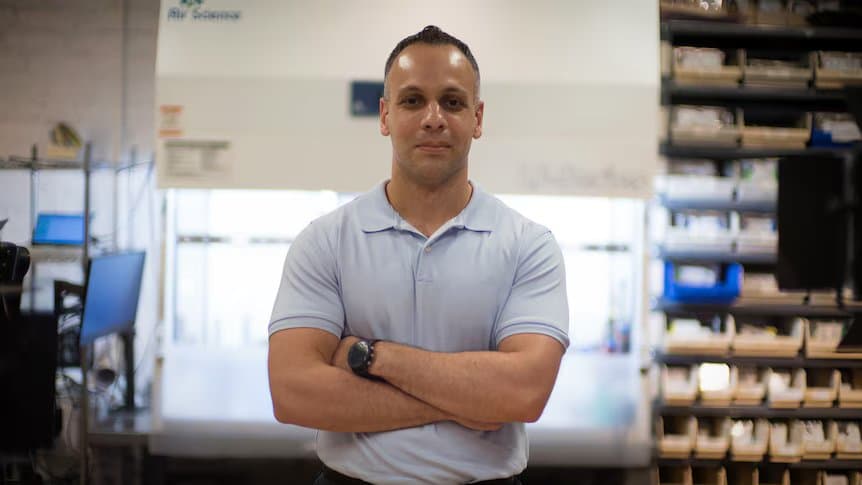
Louis Rossmann
Written by
Louis Rossmann
Founder & Chief Technician

Full 45-minute walkthrough of hard drive unlocking, service area access, and recovery preparation

What You'll Learn

  • How to identify hard drive families (Seagate F3, Rosewood, Barracuda V15) and their characteristics
  • The purpose of drive unlock procedures and why service area access is critical
  • ROM chip unlocking via boot code mode vs. desoldering approaches
  • How to diagnose platter damage and head conditions using professional microscopy
  • The complete imaging process from terminal access to data backup creation

Identifying Hard Drive Families

Professional data recovery begins with accurate drive identification. Different Seagate drive families use different firmware architectures, unlock procedures, and failure modes. In this walkthrough, we examine two distinct drive families with fundamentally different recovery approaches.

Seagate F3 Family (Rosewood)

  • Identification: Check firmware label for absence of dots between letters (e.g., "ABC123" vs. "A.B.C.123")
  • Unlocking Method: Boot code mode via PC-3000 terminal
  • Compatibility: ROM patching directly within PC-3000 utility
  • Common Issues: Media cache corruption, relocation tables, service area access denial

Barracuda V15 Family (Newer)

  • Identification: Newer generation firmware with enhanced security
  • ROM Extraction: Requires desoldering ROM chip and using external reader
  • Tools Required: T6 Torx screwdriver, T9 soldering iron, chip reader, adapter
  • Recovery Time: Extended due to hardware modification requirement

Having a database of known donor drives is essential. Each donor stores complete firmware history, allowing technicians to quickly select compatible replacement components and understand drive architecture.

The Core Problem: Service Area Access Denial

Modern hard drives implement firmware protections that block direct access to the service area - where critical system files, firmware modules, and recovery tools are stored. When you attempt to read the drive ID without proper unlocking:

Initial Connection

The drive responds with an ID, and the terminal shows it's ready. You can see basic hardware information and spindle speed.

Access Attempt Fails

Trying to access service area files (1B Primary List, Module 35 Translator, File 93 Flex) returns "access denied" or "busy" status. The drive firmware actively blocks these operations.

Terminal-Level Restrictions

Even direct terminal commands (like R93) cannot retrieve data from protected sectors. The firmware enforces these restrictions at the microcode level.

This is intentional by design-Seagate implements these protections to prevent user modification of firmware. However, for data recovery specialists, this protection becomes the primary obstacle to overcome.

Method 1: Boot Code Unlocking (Seagate F3)

For Seagate F3 and Rosewood drives, unlocking can often be achieved through the PC-3000 utility without physically opening the drive. This method bypasses firmware protections by rewriting the ROM in boot mode.

Step 1: Enter Boot Code Mode

In PC-3000 Portable, select "Tools → Utility Extensions → Work with ROM Image File" and choose "Match Read via Boot Code."

The drive powers off and reboots into a special state where the normal firmware protections are bypassed.

Step 2: Read ROM Through Terminal

Once in boot code mode, the ROM chip content becomes readable through the terminal interface. The ROM is written to a profile location.

This is faster than desoldering for drives that support it, though success depends on the specific drive family and firmware version.

Step 3: Patch and Write Back

In the ROM editor window, click "Unlock" to modify the firmware protection flags. Then click "Patch" to apply the changes.

This modifies the ROM in memory. The patched ROM is now ready to be written back to the MCU.

Step 4: Write Modified ROM to PCB

Using "Write ROM to HDD," the modified firmware is written back to the ROM chip on the PCB at normal speed.

The operation completes quickly for most Rosewood drives (under 5 minutes).

Step 5: Handshake and Tech Mode Unlock

Power the drive back on and send a handshake through the terminal. Then execute "CTRL Z" to enable tech mode access.

Once tech mode is active, the service area becomes fully accessible.

Result: The drive now displays full access to RAM, system files, and service area. File 1B (Primary List), 35 (Translator/G - list), and 93 (Flex/SMP) become accessible for reading and modification.

Method 2: ROM Chip Desoldering (Barracuda V15 & Others)

Newer Seagate drives like the Barracuda V15 implement stronger firmware protections that cannot be bypassed through boot code mode. These drives require physical ROM extraction, modification using an external reader, and careful resoldering.

Locating and Preparing the ROM Chip

The ROM chip on Seagate drives is typically a Winbond or similar manufacturer's chip labeled something like "25Q16JWS12." It's a small surface - mount device (SMD) usually located near the power connector area of the PCB.

  • Remove T6 Torx screws from the PCB bracket
  • Apply flux and unleaded solder to all pins to ensure clean contact
  • Identify Pin 1 (marked with a dot) to maintain correct orientation
  • Use a standard soldering iron (not hot air) to avoid overheating surrounding components
  • Carefully lift the chip, keeping leads intact for possible rework

Reading the ROM with External Hardware

Using a dedicated ROM reader (not wire connections), extract the full ROM image. Reliable contact is critical - a single bad read could result in a corrupted ROM that makes the drive permanently unrecoverable.

Why Not Use Wire Connections?

Wire connections can introduce errors during reading, especially if the ROM contains bad sectors. A contaminated ROM could be written back to the drive, preventing recovery. Proper reader adapters ensure reliable contact and verification.

Patching and Programming

Back in PC-3000, use "Tools → Utility Extensions → Work with ROM Image File" to load the extracted ROM. Apply the same unlock patch as with boot code mode. Then use your programmer software to write the patched ROM back to the physical chip.

Once verified, carefully desolder the modified chip back onto the PCB, matching Pin 1 alignment. Use minimal heat to avoid damage to surrounding components.

Critical: Physical Inspection Before Recovery

Before attempting any recovery imaging, a thorough microscopic inspection of the platter and read/write heads is essential. This determines whether it's safe to proceed or if additional preparation is needed.

What to Look For

Platter Surface

  • Check for visible scratches, shavings, or debris particles
  • Look at the data zone (where heads fly); any white spots indicate contamination
  • Examine all platter surfaces, not just the top surface - data exists on both sides

Read/Write Heads

  • Inspect the slider surface (the bottom of the head that flies over the platter)
  • Check for platter material embedded in the slider
  • Look for bent or misaligned head arms that could cause crashes

Critical Warning: Don't Rush

If the platter has visible shavings or platter material is embedded in the heads, proceeding with imaging without cleaning will destroy the remaining heads and compound the damage. Stop and have the drive cleaned in a cleanroom before continuing recovery.

In the video, we see a real example: a Seagate Rosewood drive with significant platter shavings. The heads were damaged by internal debris, requiring professional cleanroom cleaning before any recovery attempt could succeed. After careful cleaning, the drive achieved read speeds of 20-27 MB/s, with recovery possible.

Understanding the Service Area

Once the drive is unlocked and tech mode is active, the service area becomes accessible. This area contains critical system files that control drive operation and data access.

Key Service Area Files

  • File 1B (Primary List - PLIST): Contains the mapping of logical sectors to physical locations on the platter
  • Files 35 & 28 (Translator / G - list): Maps bad sectors and tracks physical vs. logical addressing
  • File 35 (G - list): The grown defect list; sectors that have developed errors over time
  • File 93 (Flex/SMP Flex): System configuration including relocation tables and head maps

By reading these files, recovery software can understand exactly how the drive maps data. If file 93 shows relocation is enabled, the recovery process must account for data being stored in alternate locations. If the translator (35/28) shows extensive bad sectors in a particular zone, that area may require special handling or skipping.

Recovery Tip: You can access these files using keyboard shortcuts: "Ctrl Alt 1" opens Service Information Objects directly, showing all modules and files in organized categories.

Verifying Drive Health and Data Access

Before full imaging begins, it's critical to verify that the drive can actually read user data sectors. This quick diagnostic check identifies whether translator issues or platter damage will be encountered during recovery.

The MBR Signature Test

Using the sector viewer (Alt V), you can check the first sector of the user data area. A healthy drive should show the MBR (Master Boot Record) signature "55AA" at the end of sector 0. If you see this, user data is accessible.

Testing Various LBAs

Navigate through different logical block addresses using Control and arrow keys. If the drive responds with data at the beginning and end of the user data area without "INC UNC" (Uncorrectable Error) messages, the translator is likely functional. If you encounter errors in specific zones, those areas will require adaptive imaging with error correction.

What INC UNC Means: If you see "INC UNC Error," it indicates the sector cannot be read because the translator cannot map the logical address to physical location. These sectors require specialized recovery techniques or may be unrecoverable.

Creating Service Area Backups

Once a drive is successfully unlocked and all service area files are accessible, the next critical step is creating a complete backup of the service area. This serves multiple purposes:

  • Reference for Restoration: If something goes wrong during recovery, the backup can be used to restore the drive to a working state
  • Analysis: Recovery specialists can analyze the files to understand exactly how the drive is configured and what damage exists
  • Donor Drive Matching: The service area can be transferred to a donor drive if the original PCB is damaged
  • Cloning Capability: Multiple copies of the service area allow recovery to be attempted multiple times without risking the original

In PC-3000, this is as simple as clicking the "Backup" button for the service area. The software automatically saves all files to a secure location.

About PC-3000: Professional Data Recovery Hardware

PC-3000 Portable is the industry - standard tool for professional hard drive data recovery. It provides capabilities that standard operating systems simply cannot offer.

What PC-3000 Can Do

  • Firmware Analysis: Read, modify, and patch ROM code at the microcode level
  • Service Area Access: Read and modify protected service areas when the drive firmware denies access
  • Sector Mapping: Understand and work around translator issues and logical/physical address mapping
  • Adaptive Imaging: Skip bad sectors, read sectors multiple times with different error correction, and recover data intelligently
  • Terminal Mode: Direct communication with drive firmware for low-level commands
  • Head Map Modification: Disable damaged read/write heads to allow imaging with remaining heads

PC-3000 is designed specifically for these scenarios where standard tools fail. When a hard drive is partially damaged, has firmware corruption, or contains encrypted service areas, PC-3000 provides the microcode - level access needed for recovery.

Sources: PC-3000 is developed and maintained by ACE Lab, a leading data recovery tool manufacturer. Professional labs use it because it's industry - proven and regularly updated for new drive models.

Common Challenges During Recovery

Even after successful unlocking, recovery specialists encounter various challenges that require specialized approaches:

Translator Issues

The translator module (files 28/35) maps logical block addresses to physical sector locations. If corrupted, drives appear completely inaccessible. Recovery requires manually rebuilding the translation table or using tools that bypass it.

Relocation Tables

Modern drives automatically move data from failing sectors to spare sector pools. If relocation is disabled improperly, user data may become inaccessible. Recovery must re - enable relocation or map around it.

Platter Damage Zones

Sectors with physical platter damage cannot be read reliably. PC-3000 handles this by using adaptive imaging - multiple read attempts with varying parameters to maximize recovery from degraded areas.

Media Cache Errors

Hard drives use on - board cache to buffer reads/writes. If corrupted, the drive may freeze when specific sectors are accessed. Recovery requires identifying and working around these problematic zones.

After Unlocking: The Imaging Phase

Once a drive is successfully unlocked and the service area is backed up, the actual data recovery imaging can begin. This is where user files are extracted and saved to a separate drive or image file.

The imaging process can take hours or days depending on drive capacity, damage severity, and read speeds. PC-3000 monitors progress and adapts read parameters on - the - fly when errors are encountered. The result is a complete or partial disk image that can be analyzed for file recovery using traditional data recovery software.

This video focuses specifically on the unlocking phase - preparing the drive for recovery. In future videos, we'll cover full imaging procedures, file system reconstruction, and successful data recovery case studies.

Key Takeaways for Data Recovery Professionals

  • Drive family identification is critical: Use firmware labels to determine which unlock method is appropriate
  • Service area access is non - negotiable: Without it, recovery is nearly impossible on modern drives
  • Physical inspection prevents wasted effort: If platters are contaminated, clean before attempting recovery
  • Always backup the service area: This provides insurance against mistakes and enables analysis
  • PC-3000 is essential for professional recovery:Standard tools simply cannot handle the complexity of modern hard drive failures
  • ROM modification requires precision: Mistakes at this stage create permanent damage
  • Donor drive databases are invaluable: Matching firmware versions enables reliable component transfers

Professional Data Recovery Services

If you have a Seagate, Western Digital, or other hard drive that needs professional recovery, our Austin lab uses PC-3000 hardware, cleanroom procedures, and deep expertise to recover data from even severely damaged drives. We handle firmware issues, translator corruption, platter damage, and head failures.

Sources

Related Recovery Guides